Parametric modeling
FIELD NOTES / 02How to Create Parametric 3D Models Online for Free
Build a dimensioned sketch, extrude a solid, change a dimension and reopen an editable SolidCraft model with a free browser-based workflow.
The short answer
You can create a parametric 3D model online by drawing a constrained sketch, assigning driving dimensions and extruding its closed profile. In this SolidCraft exercise, build a 40 × 30 mm rectangle on the XY plane and extrude it 10 mm. Change the width to 50 mm: the volume should increase from 12,000 to 15,000 mm³ while depth and height stay unchanged. Download the native .solidcraft design and reopen that exact file to check that its sketch and extrusion remain editable. The browser editor is free for this local workflow; signup, a cloud subscription and an AI assistant are not required.
01A driving dimension changes geometry; a reference measurement only reports it.
02A fully constrained sketch defines position as well as size.
03A successful native reopen completes the exercise.
Written by the maintainers of solidcraft.online, which operates the community editor and optional cloud services. Independent of the upstream SolidCraft maintainers. About this guide and its scope.
Set up a small experiment you can verify
Open SolidCraft Online in a desktop browser with a mouse. The captures here use the English v0.23.0 editor on macOS with WebGL2. The first launch downloads the application; keep the tab open while it loads. A phone can be useful for reading this guide, but this test does not establish precise modeling on a touchscreen.
Start a new design and choose millimetres. If another part is open, download anything you need before replacing it. The target is intentionally simple: one rectangle, two driving dimensions and one extrusion. Its arithmetic gives you an independent check on whether the edit did what you intended.
| Revision | Width × depth × height | Expected solid volume |
|---|---|---|
| Original | 40 × 30 × 10 mm | 12,000 mm³ |
| Changed width | 50 × 30 × 10 mm | 15,000 mm³ |
Our verification constructs the geometry through the editor’s documented control API, then changes the sketch dimension through the actual interface. The commands are provided with the model files so the construction can be reproduced. The manual tool names below are checked against the pinned release; this is distinct from claiming a complete mouse-only creation session.[controls][sketching]
1. Draw a rectangle anchored to the origin
In the model workspace, choose Create Sketch and select the XY origin plane. In sketch mode, choose 2-Point Rectangle or its R shortcut. Place the first corner at the sketch origin, then place the opposite corner in the positive X/Y quadrant.
The first corner’s relationship to the origin matters. Two dimensions can define the size of a rectangle while leaving it free to move around. A coincident origin corner removes that extra movement. The rectangle’s horizontal, vertical and coincident relationships keep it rectangular as its dimensions change.
Keep the boundary as ordinary sketch geometry. Construction geometry is for reference and does not form the filled region you need for a solid. Look for one closed rectangular profile. A visual outline alone is insufficient if two endpoints only appear to meet or an edge is construction-only.[sketching]
2. Add the two driving dimensions
Choose Sketch Dimension or press D. Dimension a horizontal rectangle edge to 40 mm, then a vertical edge to 30 mm. Enter explicit units if the document is not already in millimetres. Avoid dimensioning both opposite edges to the same size; the rectangle’s relationships already determine those duplicate lengths.
A driving dimension instructs the solver to change the sketch. A driven or reference dimension reports a value determined elsewhere. In v0.23.0, if the existing constraints already determine a proposed dimension, the interactive tool adds it as a driven (reference) dimension, shown in parentheses with no editable value. Edit the original driving dimension to resize the sketch. If a constraint is refused, inspect the existing relationships before adding more.[sketching]
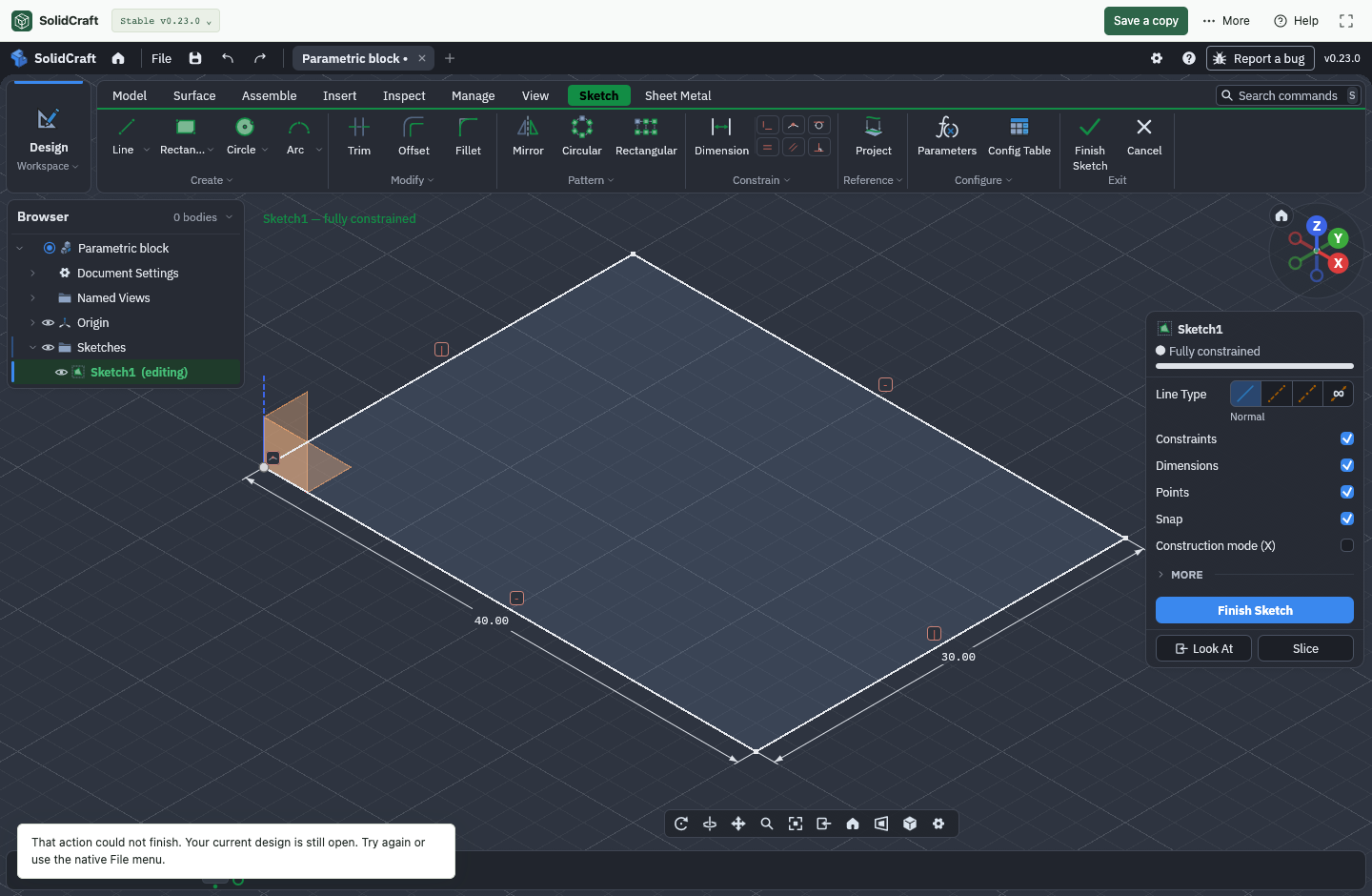
The verified model uses the automatically created dimension parameters. You do not need to define a separate named user-parameter table to complete this exercise. The essential result is a sketch that knows its two sizes and position, and can recompute when one size changes.
3. Extrude the closed profile by 10 mm
Choose Finish Sketch, then Extrude. Select the rectangle’s filled profile, use a one-sided distance of 10 mm, and choose a new-body operation. Confirm the feature and orbit the view to inspect the result.
You should now have one rectangular solid, a sketch and an extrusion in its construction history. If the extrusion tool finds no profile, return to the sketch and inspect closure and construction status. If it creates a surface or an unexpected region, check what you selected before changing the dimensions.
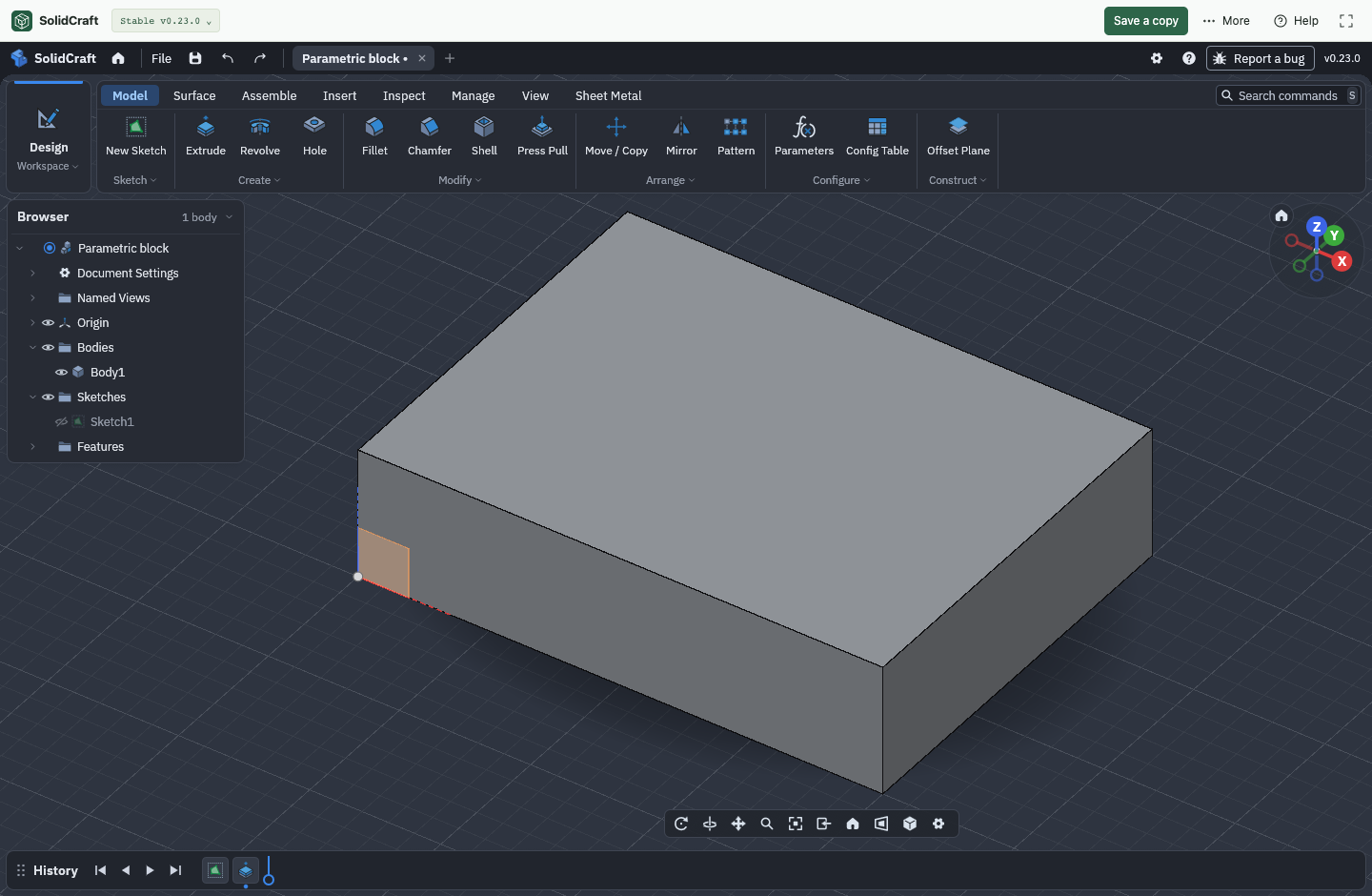
The check is 40 × 30 × 10 = 12,000 mm³. This clean geometry is a useful control case: a substantially different volume indicates different dimensions, more than one body, or an unintended feature. Save an original native copy before making the next revision.
4. Edit the sketch, then check the rebuild
Open the existing sketch for editing from its timeline feature. Double-click the horizontal 40 mm dimension, replace its value with 50 mm, confirm the entry, and finish the sketch. Edit the dimension on the existing rectangle; drawing a second rectangle or scaling the final mesh is a different operation.
The extrusion should rebuild to a 50 × 30 × 10 mm block. The height remains controlled by the extrusion, and the other sketch dimension remains 30 mm. Our actual UI edit uses the dimension’s text, confirms the value and finishes the sketch; inspection then reports one solid at 15,000 mm³.
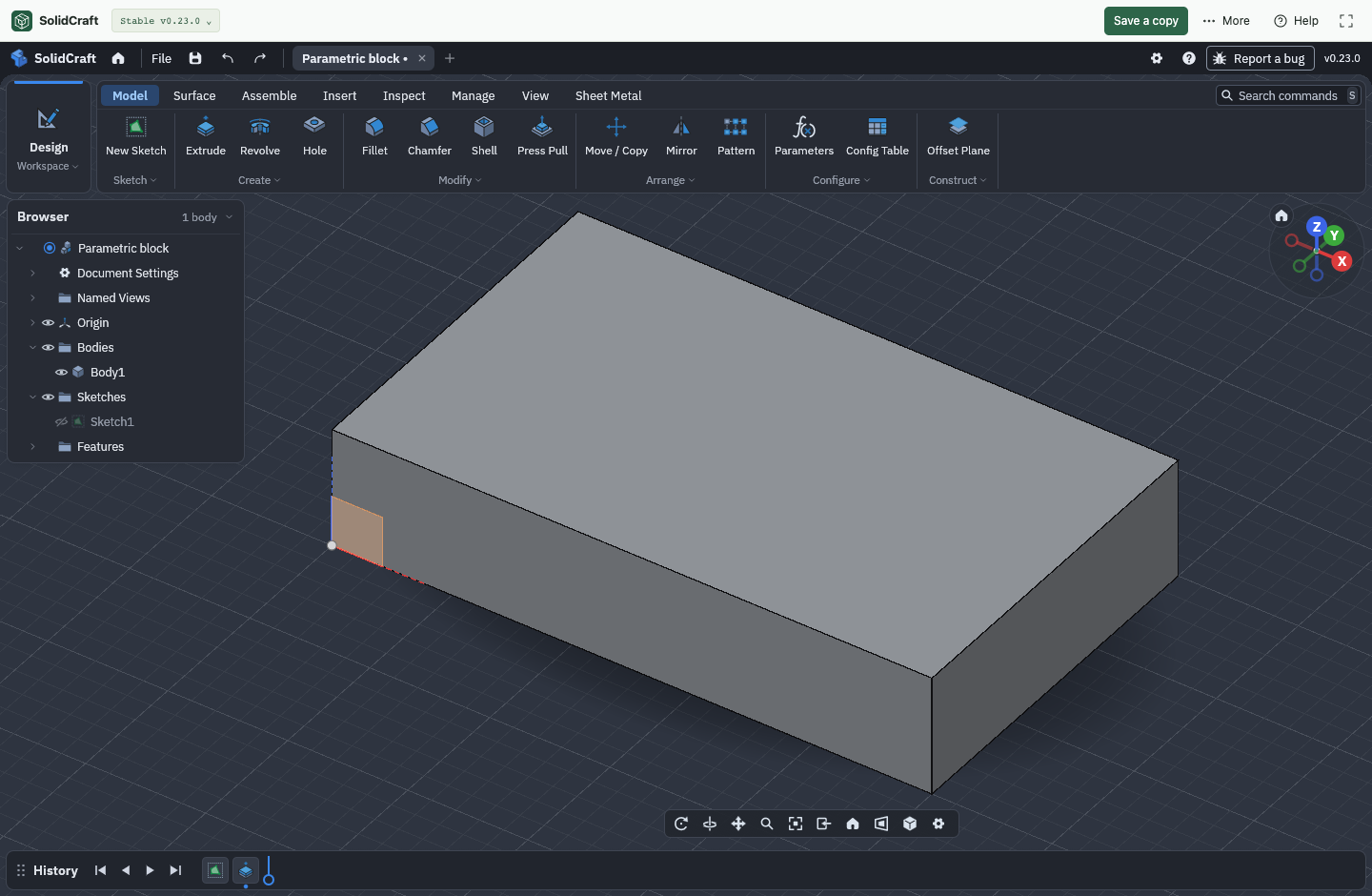
Try Undo and Redo to compare the two revisions. Depending on the current editing state, entering or leaving sketch mode may add an undo step. Watch the actual dimension or geometry rather than assuming a fixed number of keyboard presses. The verification record checks both target volumes.
5. Download and reopen the editable revision
Use the site editor’s Download toolbar action to obtain the current .solidcraft design. The native File menu also offers a design download. Check your browser’s download location and keep the original and revised copies under distinguishable names.
Return to the online page and choose its native-file picker to open the revised download in a compatible editor. Confirm one solid, the sketch and the extrusion, then inspect the dimensions again. The provided revised file was downloaded and reimported in a new design before its screenshot was taken.
Saving depends on the browser. Chrome, Edge and Opera can use a local file picker and write back to the chosen file after permission is granted. Firefox and Safari keep ordinary saves in browser storage. File → Download design makes a separate backup in any browser; autosave and recovery remain in browser storage. Clearing site data can remove those browser copies.[files]
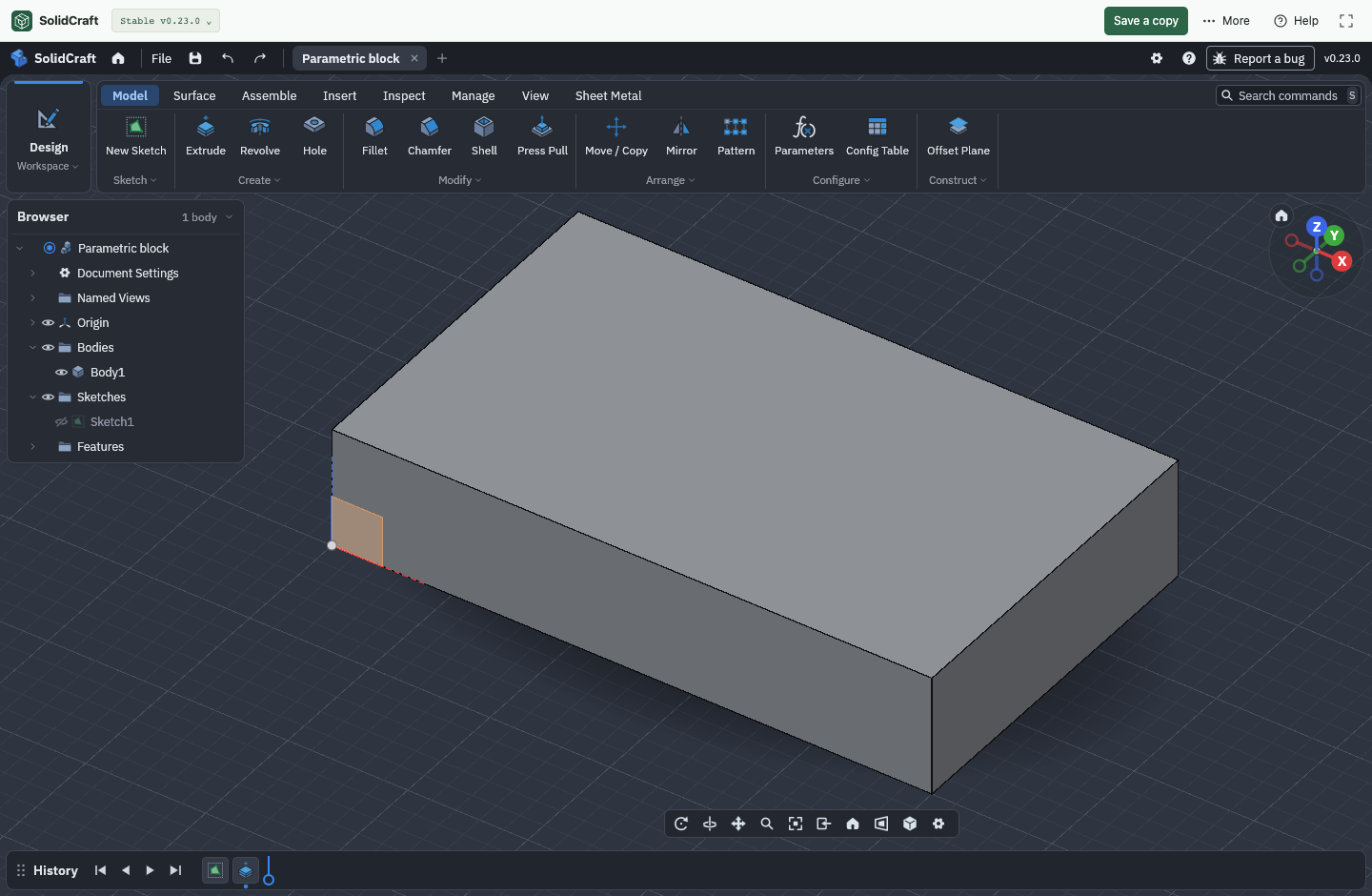
These files use native format 37 from v0.23.0. The older emergency editor cannot open this newer format. Keep an untouched original before upgrading files in future releases. Browser storage, an ordinary downloaded file and an optional cloud save have different recovery paths.[files][online]
An STL can carry a triangulated surface to another tool, but it does not preserve this editable sketch and extrusion. For the next exercise, keep the native file and follow the 3D-printing workflow to create a plate and check its exported mesh.
When the result does not match
| Observation | What to check next |
|---|---|
| Rectangle moves without changing size | The origin corner or another positional relationship may still be free. Check remaining degrees of freedom. |
| New dimension is parenthesized and cannot be edited | It is a driven (reference) measurement. Edit the existing driving dimension; check for a duplicate dimension or fixed geometry. |
| The whole part changes unexpectedly | Check whether you edited the sketch dimension, the extrusion distance or a scale operation. |
| Volume is wrong after reopen | Check that you opened the revised file, not the original download, and confirm millimetres and one solid. |
| Saved file cannot open in the emergency editor | Use the compatible stable editor. A newer native format is not a downgradeable exchange format. |
If you are still choosing a tool, the free CAD shortlist explains account, privacy and workflow differences. For a broader introduction to the interface and sketch-to-solid concepts, continue with the beginner guide.
Keep the editable original
Files for this exercise
Common questions
A few things to know
Do I need an account or a paid plan for this exercise?
No account is required for the local browser modeling and native-download workflow described here. Optional signed-in cloud storage has separate plans and limits.
Is changing the width field the same as creating a parametric sketch?
No. The practice field edits a prepared model. To establish the complete construction, create the origin-anchored rectangle, its driving dimensions and the extrusion, or reproduce the supplied command sequence in an empty design.
Why use a block instead of a more impressive model?
The volume is easy to calculate independently. A simple control case makes an incorrect dimension, body count or saved revision much easier to identify.
Can I keep editing an STL as if it were this native design?
An STL does not carry the original sketch dimensions and feature history. Keep the native design for revisions and export a separate mesh when the receiving workflow needs one.
Traceable claims
Sources & verification
Sources checked October 26, 2026. Official documentation supports the product descriptions; our own tests cover the explicitly described SolidCraft examples. Plan conditions and software behavior can change.
- SolidCraft v0.23.0: sketching and constraints ↗Official source · checked October 26, 2026
- SolidCraft v0.23.0: native files, browser saving and mesh export ↗Official source · checked October 26, 2026
- SolidCraft v0.23.0: reproducible editor control protocol ↗Official source · checked October 26, 2026
- SolidCraft Online: editor, examples and saving ↗Official source · checked October 26, 2026
v0.23.0 / format 37. Geometry construction is reproduced from an empty design through the editor control API. The driving-dimension edit uses actual sketch UI events; native download and reimport are also tested. The practice-panel shortcut is a separate workflow.
Editor measurements, environment and file checksums. Found an issue? Send a correction.