FREE & OPEN-SOURCE BROWSER CAD

SolidCraft Online: Free 3D CAD in Your Browser

Use free, open-source parametric 3D CAD online. Sketch, set dimensions and build editable parts in your browser, with no installation or signup. Try a real example and keep a native backup on your device.

Ready to launch · first use downloads the CAD application

For precise modeling, use a desktop browser and mouse. Lessons and practice notes also work on your phone.

THE REAL WORKSPACEv0.16.1
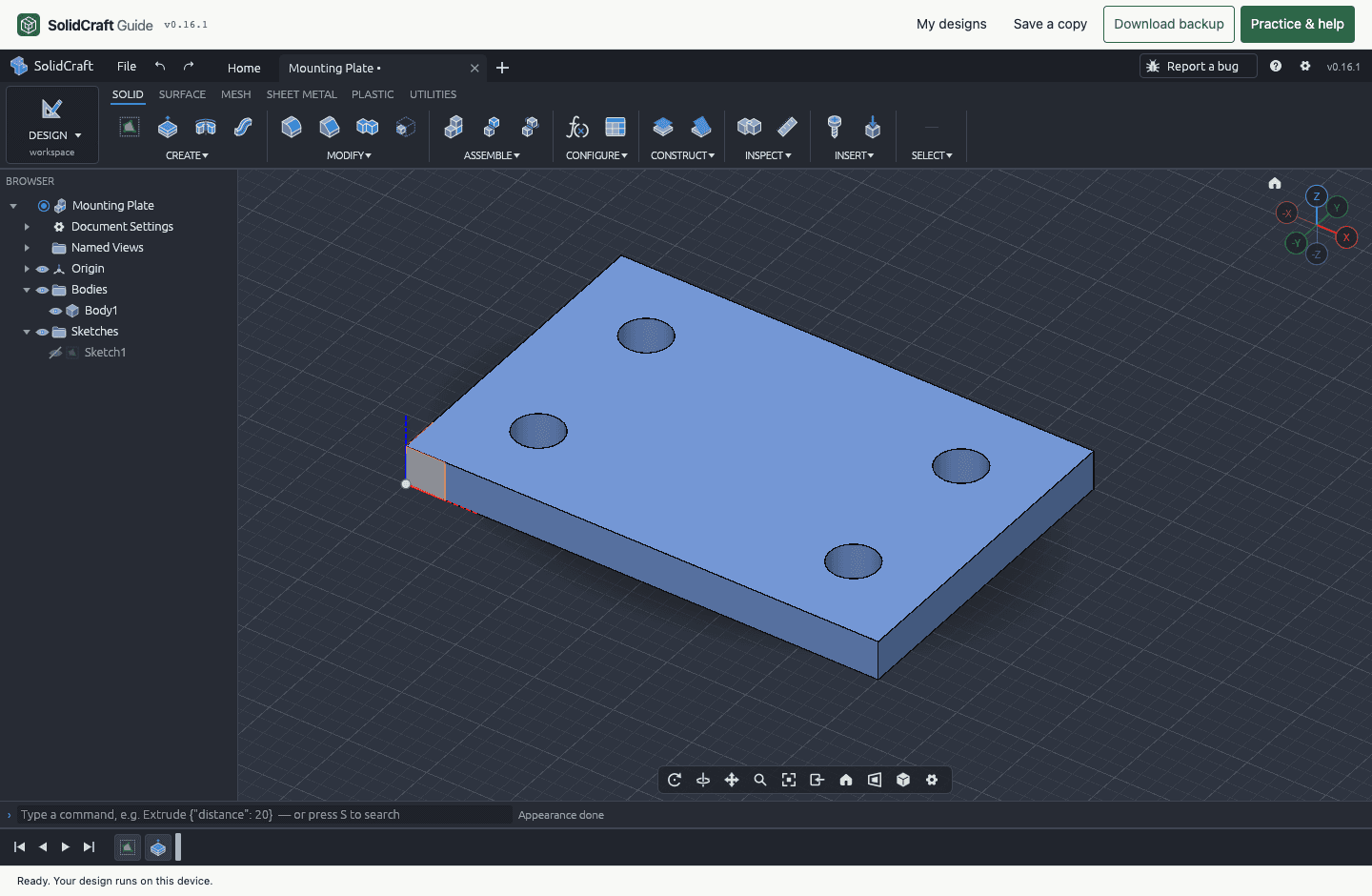
SolidCraft v0.16.1 online CAD editor showing the verified four-hole mounting plate
An editable part. A parametric timeline. Your own changes.
No account neededModels run on your deviceEditable native backups

THE BROWSER WORKSPACE

What is SolidCraft Online?

SolidCraft Online is a browser-based workspace for the free, open-source SolidCraft parametric 3D CAD application. It lets you create dimensioned sketches, build solid parts and edit their construction history without installing a desktop application. This page provides a community-hosted editor, two editable practice models and guidance on saving your work.

It is a useful starting point for students learning sketch-to-solid modeling, makers testing a small part, or anyone trying SolidCraft before downloading it. This is an independent community integration. Development, source code and software licensing belong to the upstream SolidCraft project. About this guide

Workspace version
v0.16.1
Software license
MIT / Apache-2.0
Account required
No · free to use
Design storage
On your device · no cloud sync

FROM SKETCH TO SOLID

What can you do with SolidCraft Online?

Sketch parts with dimensions and constraints

Draw a rectangle or circle on a plane, then define its size with dimensions. Constraints describe relationships such as horizontal edges or equal lengths, so a sketch behaves predictably when you edit it. This is useful for measured parts such as spacers and mounting plates, where a visual approximation is not enough.

Sketching and constraints documentation

Edit parametric 3D models in your browser

Extrude a closed sketch into a solid and use the feature timeline to understand how the part was built. Parametric modeling keeps dimensions and construction steps editable. In the block example below, changing a single width rebuilds the part; you can compare the result and undo the change without drawing everything again.

Solid modeling documentation

Design simple parts for 3D printing

Use a dimensioned model as the starting point for a spacer, bracket or small prototype. Export an STL mesh for a separate slicer, then check units, wall thickness, clearances and print orientation there. Keep a native design as well: a printable mesh does not preserve the sketch dimensions and feature history you need for the next revision.

Import and export documentation

A SMALL PART. A COMPLETE WORKFLOW.

SolidCraft Online examples you can edit

Follow the beginner tutorial
SolidCraft Online 40 × 30 × 10 mm parametric block01

RECTANGLE / DIMENSIONS / EXTRUDE

Parametric block: change a sketch dimension

40 × 30 × 10 mm

One rectangle, two dimensions, one extrusion. Change the width from 40 to 50 mm and see the solid rebuild.

Try this: Set the width to 50 mm in the practice panel. With the other dimensions unchanged, the volume becomes 15,000 mm³. Undo the edit and compare the two sizes.

Verified volume 12,000 mm³
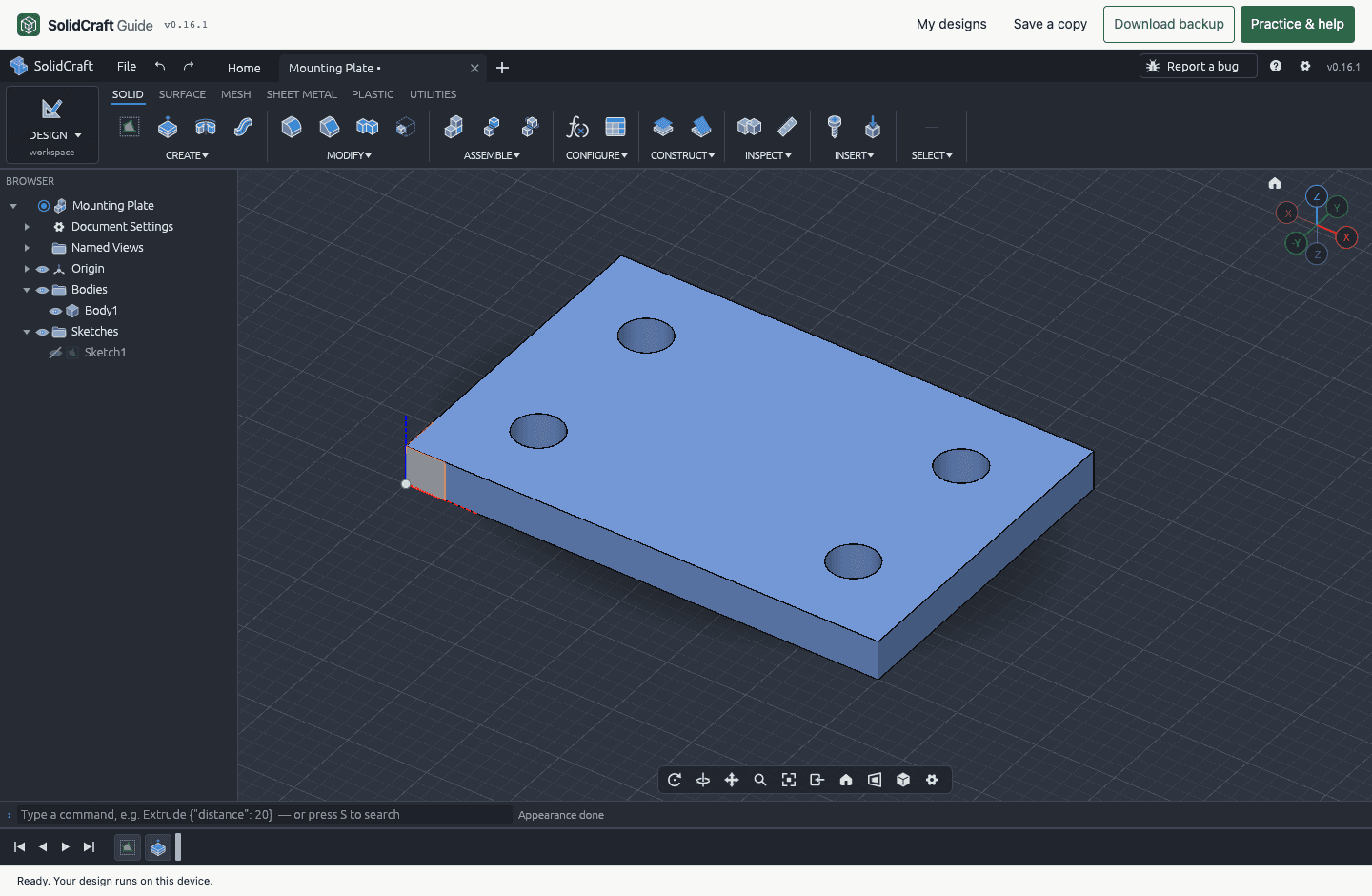
SolidCraft Online 60 × 40 × 5 mm mounting plate with four Ø6 mm holes02

PROFILES / CIRCLES / EXTRUDE

Mounting plate: explore a four-hole sketch

60 × 40 × 5 mm · Ø6 mm

A plate with four through-holes. Inspect its sketch and feature history, then use it to explore profiles and extrusion.

Try this: Open the sketch and locate the four Ø6 mm circles inside the rectangular boundary. Compare the sketch with the finished solid to see how the inner profiles become through-holes.

Verified volume ≈11,434.61 mm³

Each practice starts a new design. The workspace asks how to handle an existing part before replacing it. Mounting-plate volume is an approximate browser measurement.

CREATE. CHANGE. COME BACK.

How to use SolidCraft Online

For a first session, use a desktop browser and a mouse. The parametric block is the shortest path through opening a model, changing a dimension and saving a file you can edit again. Follow these three steps before moving on to your own part.

  1. 01

    Open a blank design or a practice model

    Choose Start a new design for a blank document, or open the parametric block above. Wait for the first application download and the model to load. You can also open a native .solidcraft file in the workspace or use My designs to return to a saved browser copy.

  2. 02

    Edit a sketch and rebuild the part

    In the block practice panel, change the width from 40 to 50 mm and apply it. Inspect the wider solid and its timeline, then try undo and redo. For your own model, create a sketch on a plane, draw and dimension a closed profile, finish the sketch and extrude it.

  3. 03

    Save a browser copy and download a backup

    Save a browser copy for your next visit. Download a .solidcraft backup through the workspace’s file tools, then reopen it to verify that the part and history are present. Before trying another practice, use the workspace’s save, discard or cancel choice to handle the current design.

Save and export your online CAD designs

Saved designs belong to this browser profile and this workspace’s origin. Another browser or device cannot see them automatically. Clearing site data, private browsing or storage eviction can remove local copies. Our service does not upload your design files or provide cloud synchronization.

Which save or export format should you use?
FormatUse it forWhat to keep in mind
Browser saveContinue in the same browser profile and workspace.Local site storage; clearing site data can remove it. It is not cloud sync.
.solidcraftKeep an editable backup or move a design to another device.Native design with its modeling history. Reopen the download to check it.
STEPExchange solid geometry with another CAD tool.An exchange copy; it does not carry the original SolidCraft feature history.
STLSend a mesh to a separate 3D-printing slicer.Check scale in the receiving tool. Keep the native file for future edits.

Use the editor’s native file tools for downloads and exports. A later browser save does not update a file you already downloaded. For reliable handoff, download the latest copy and check its dimensions in the receiving application. Official file documentation

This workspace uses native file format 27. Older designs can be opened, but files saved here do not open in SolidCraft v0.15.x or earlier. Keep your original files before upgrading.

Read about local storage and analytics

CHOOSE YOUR WORKSPACE

SolidCraft Online vs desktop: which should you use?

Choose SolidCraft Online when you want to try parametric CAD without installing software or follow the examples on this page. Choose the desktop app when local folders or desktop integrations matter to your workflow. Both use SolidCraft’s modeling tools; a compatible native file is the way to move an editable design between them.

Browser and desktop workflow differences
WorkflowSolidCraft OnlineSolidCraft desktop
Getting startedOpen the workspace; no installer or account required.Install the official app for Windows, macOS or Linux.
Files and backupsBrowser storage plus downloaded native backups.Open and save native files in your computer’s folders.
Typical useTry CAD, follow lessons and edit small practice parts.Work with local project folders and desktop integrations.
AI and automationManual CAD editing; no hosted AI chat or MCP connection here.Configure supported MCP workflows with a compatible AI client.

BEFORE YOU LAUNCH

Browser requirements and troubleshooting

Graphics support, browser storage and the size of your design affect the online experience. Start with one of the small practice models to check this device before moving your own project.

Desktop browsers and mobile modeling

Start with an up-to-date desktop Chrome or Edge, hardware acceleration and a mouse. The editor needs WebGPU or WebGL2; support depends on the browser, GPU and driver together. A larger screen makes precise sketching easier. You can read these examples on a phone, but a desktop is the recommended modeling setup.

First launch and offline use

The first workspace launch needs an internet connection to download the CAD application. Once its application files are cached successfully, the workspace can reopen offline on that device. Browser cleanup can remove caches and saved designs, so verify offline startup on your device and keep downloaded native backups.

What if the online CAD editor will not start?

  1. Allow the first download to finish and enable browser hardware acceleration.
  2. If WebGPU fails, try the WebGL2 launch link. This requests a different graphics renderer.
  3. If the device still cannot start the editor, use the desktop download guide.

Good questions

SolidCraft Online FAQs

Is SolidCraft Online free and open source?

Yes. This workspace hosts the open-source SolidCraft web application for free. The upstream software is available under MIT or Apache-2.0, at your option. You do not need a subscription or paid AI API to use its interactive CAD tools.

Do I need to install SolidCraft or create an account?

No installation or signup is required. Follow a launch link to open the editor in a separate workspace. The CAD application downloads on the first launch; reading this page does not load the engine. Later launches can use cached files while the browser keeps them.

Can I open a desktop .solidcraft file online?

Yes, when its file format is supported by this workspace version. Download a native copy from the desktop app and open it in the browser editor. This workspace uses format 27; files saved here cannot be reopened in SolidCraft v0.15.x or earlier. Keep the original before upgrading.

Can I use SolidCraft Online for STL and STEP files?

SolidCraft documents STEP import and export for CAD geometry, and STL export for mesh workflows such as 3D printing. Use the editor’s native file tools and check the options in this version. Keep a .solidcraft backup because exchange files do not preserve the original parametric history.

Are my CAD designs uploaded or shared online?

This integration does not upload design files or provide cloud sharing. Modeling and browser saves run on your device. A workspace bookmark contains no model data, and another browser or device cannot automatically see saved designs. Download a native backup to move your work.

Does the online editor include AI chat or MCP?

This hosted workspace provides interactive CAD tools and guided practice parts. It does not include hosted AI chat or a connection to your desktop AI client. To explore SolidCraft’s MCP workflow, use the desktop setup guide and configure a compatible client separately. SolidCraft MCP setup guide

How do I continue a saved design on another device?

Download the current design as a .solidcraft file, transfer it to the other device, and open it in a compatible SolidCraft version. Reopen the backup before clearing the original browser’s site data. New edits on either device are separate copies; this workspace does not synchronize them.