Design to print
FIELD NOTES / 03How to Design 3D Printable Parts Online for Free
Model a mounting plate in your browser, export an STL and check scale, geometry, clearances and orientation before slicing for 3D printing.
The short answer
To design a 3D-printable part online, build a dimensioned solid, keep its editable native design, export a mesh and check that mesh in a separate slicer. This walkthrough uses a 60 × 40 × 5 mm plate with four Ø6 mm through-holes. Hole centers are 10 mm from the adjacent edges, giving 40 × 20 mm center spacing. After exporting STL, verify a 60 × 40 × 5 mm bounding box at 100% scale, one closed mesh and four open passages through the plate. Then choose your printer and material profile and inspect the sliced layers. Our checks establish a digital workflow; no physical print is claimed.
01Define hole centers and thickness before drawing the part.
02Keep both the native design and the STL exchange copy.
03Check the imported dimensions and actual layers before printing.
Written by the maintainers of solidcraft.online, which operates the community editor and optional cloud services. Independent of the upstream SolidCraft maintainers. About this guide and its scope.
Start with a complete dimension specification
A useful first printing exercise is a small flat part whose geometry is easy to inspect. This plate is an instructional example. Its dimensions describe the nominal CAD shape; they do not establish a load rating, a fastener fit or a printer’s dimensional accuracy.
Open SolidCraft Online in a desktop browser and start an empty millimetre design. Use the stable v0.23.0 editor for the supplied native file. If you are new to sketches and driving dimensions, first complete the parametric block exercise.
| Feature | Value | Definition |
|---|---|---|
| Outer rectangle | 60 × 40 | Lower-left corner at sketch origin (0,0); opposite corner (60,40). |
| Plate thickness | 5 | One-sided extrusion along positive Z from the XY plane. |
| Holes | 4 × Ø6 | Four circles of radius 3, passing through the full thickness. |
| Lower hole centers | (10,10), (50,10) | X/Y distances measured from the sketch origin. |
| Upper hole centers | (10,30), (50,30) | Same coordinate system; center spacing is 40 × 20. |
| Center-to-edge distance | 10 | Hole centers, rather than circle edges, are 10 from adjacent outer edges. |
| Nominal edge ligament | 7 | 10 mm center offset minus 3 mm hole radius. |
The explicit coordinate convention removes a common ambiguity: a 10 mm hole-center offset is different from 10 mm of material between a hole and the outside edge. Keep that distinction when adapting the exercise to your own mounting pattern.
1. Build one closed sketch with four inner circles
Choose Create Sketch on the XY plane. With 2-Point Rectangle, anchor the first corner to the origin. Add a 60 mm horizontal dimension and a 40 mm vertical dimension. Keep the boundary as ordinary geometry.
Add four center-point circles inside the rectangle. For each, set its diameter to 6 mm and constrain its center horizontally and vertically from the origin using the coordinate pairs in the table. Dimension the center, rather than the circle’s nearest edge, when setting its position.
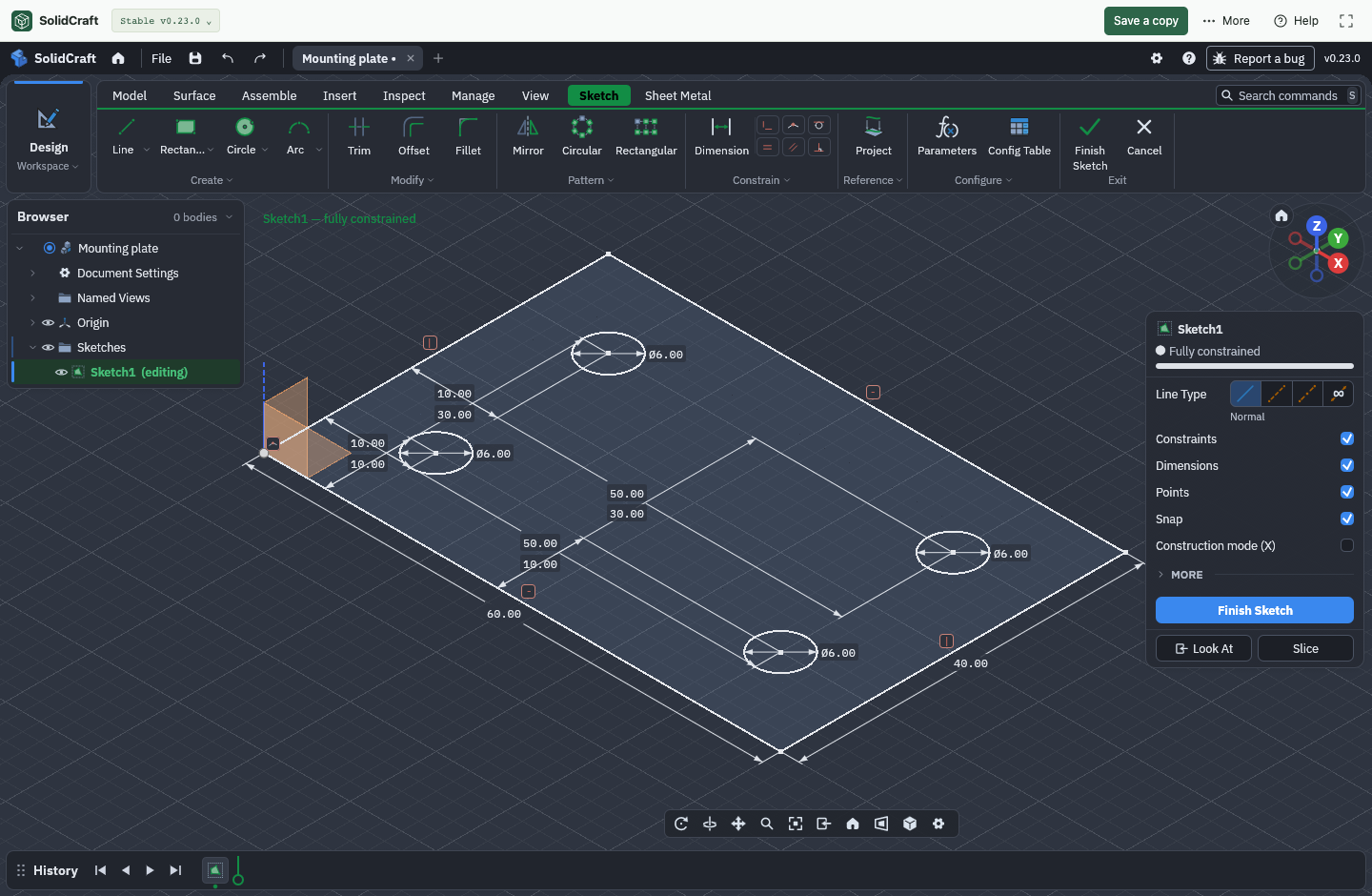
Look for one outer rectangle and four separate inner circles. No circle should touch the outer boundary or another circle. Check the dimension values and remaining degrees of freedom. A positioned circle with no diameter constraint can still change size; a diameter alone does not fix its location.
The downloadable construction commands reproduce this geometry through the editor’s documented control API. The manual tools and geometric relationships are described here so you can inspect and adapt the result; the evidence record identifies which operations were automated.[sketching][controls]
2. Extrude the plate and keep a native backup
Finish the sketch. Choose Extrude, select the rectangular region outside the four circles, and use a 5 mm one-sided new-body extrusion. Selecting the inner disks instead produces the wrong result. Rotate the view and look through all four holes.
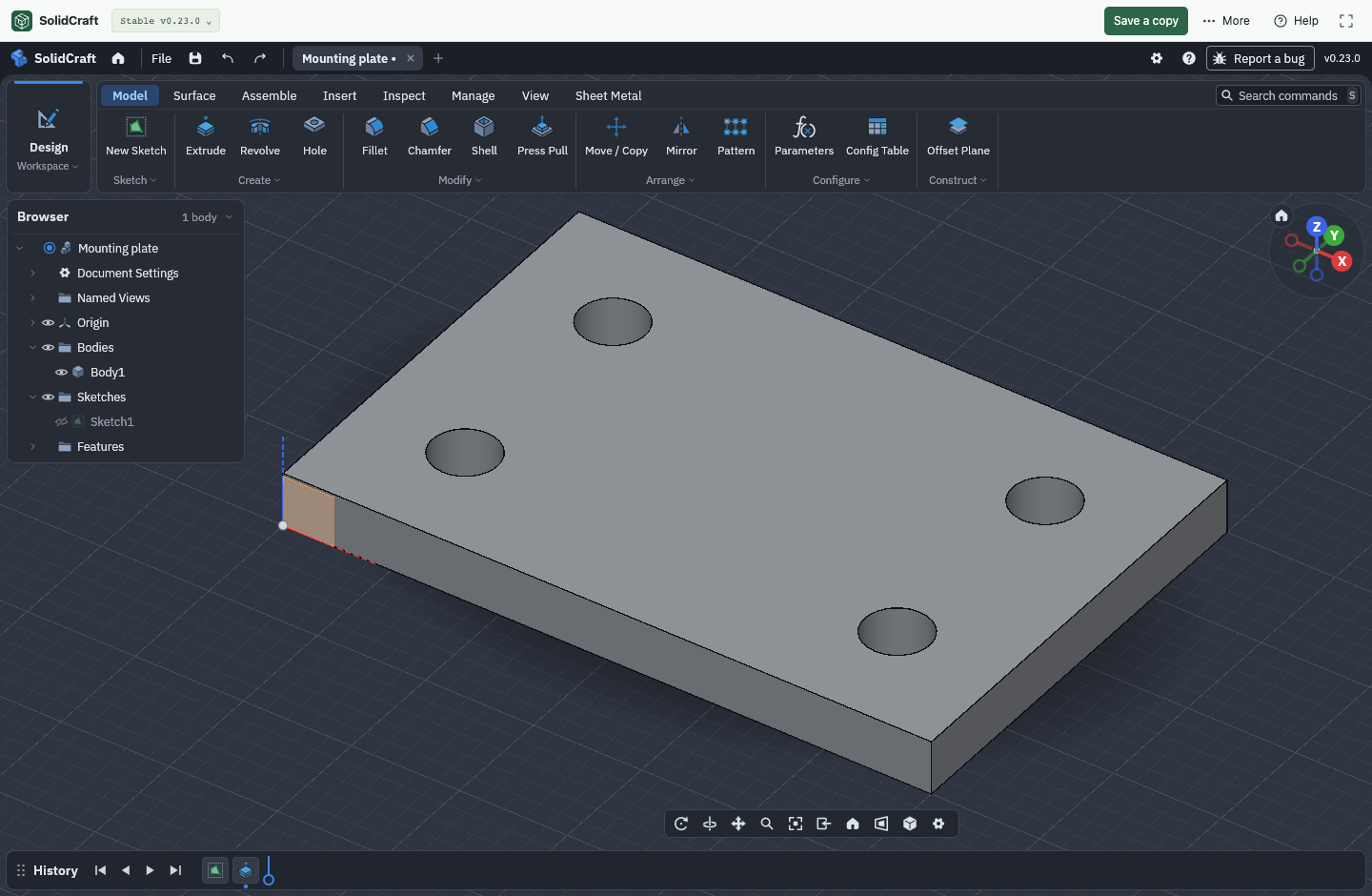
A useful independent arithmetic check is (60 × 40 − 4 × π × 3²) × 5 ≈ 11,434.51 mm³. Browser measurements and tessellated approximations may differ slightly. The outer bounds should remain 60 × 40 × 5 mm; subtracting four full-height cylinders changes the volume, not the outside dimensions.
Download the .solidcraft original before export. Reopen it once to confirm its history and geometry. If you later need a different hole diameter or thickness, this is the revision source. Editing a native dimension and re-exporting is a clearer workflow than treating a tessellated STL as the editable master.
3. Export the solid as an STL
The v0.23.0 native File menu offers Export STL; Save As Mesh on the Insert tab opens the mesh dialog as well. Choose the plate body, STL format and an appropriate quality setting. For this example, the recorded export uses Fine. Check the downloaded file exists and has a nonzero size.
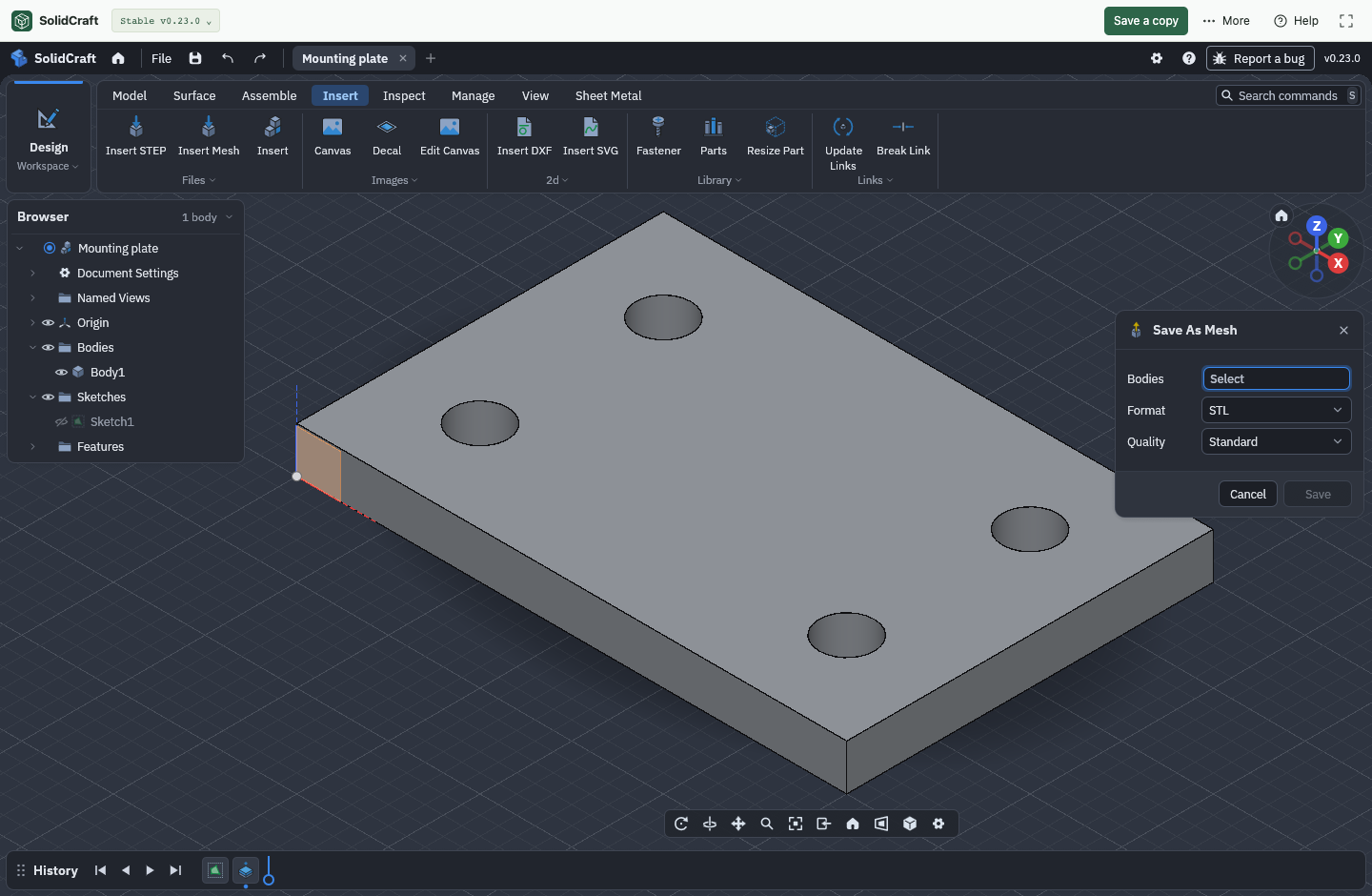
Mesh quality controls how curved surfaces are approximated by triangles. A coarse hole can become visibly polygonal. Increasing quality improves that approximation but does not add the sketch’s feature history to STL. The supplied file is an actual export of the native model, not a separately drawn approximation.[files][stl]
4. Check the exported mesh independently
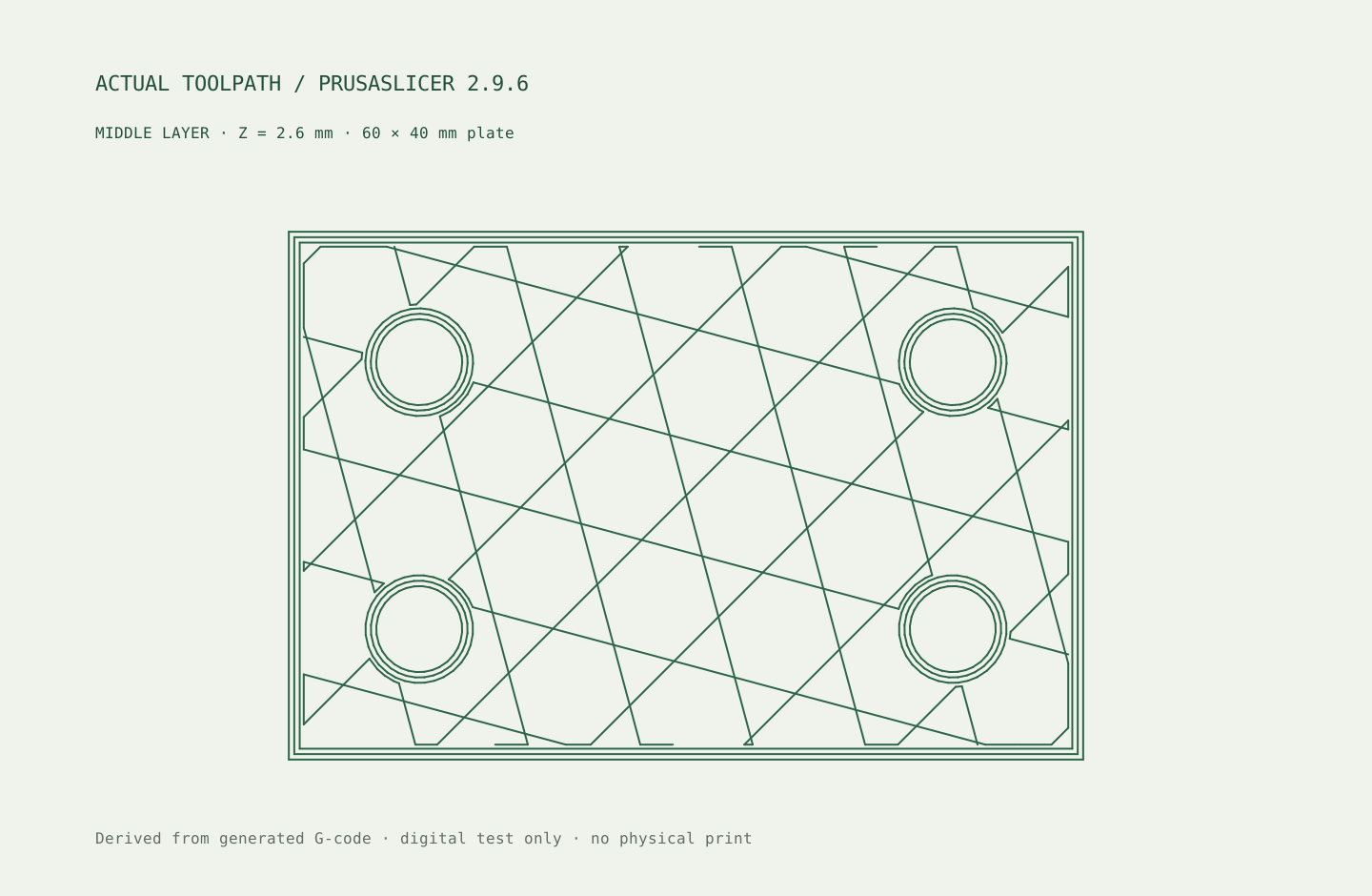
Open the STL in your slicer and compare its reported dimensions with the specification. View it from above and underneath, and inspect a layer through the middle of the plate. You should see an outer perimeter and four inner boundaries, with material connecting the rest of the plate.
| Check | Expected result | Why it matters |
|---|---|---|
| Bounds at 100% | 60 × 40 × 5 mm | Detects a unit or scaling mismatch. |
| Connected material | One connected mesh | Detects an accidental second body or disconnected pieces. |
| Mesh boundary edges | Zero | A closed surface has no exposed triangle edges; through-holes have closed inner walls. |
| Middle section | One exterior loop and four interior loops | Distinguishes real through-holes from circles drawn on a solid face. |
| Slicer import and slice | Accepted by PrusaSlicer 2.9.6 CLI | Checks that a separate application can read and process the actual file. |
The exported STL contains 6,588 triangles. Our independent check found one connected component, zero boundary or non-manifold edges, and five closed loops at Z = 2.5 mm: one outer boundary and four hole boundaries. Its tessellated volume is approximately 11,434.89 mm³; the small difference from the nominal solid reflects the mesh approximation of the circles. Here “non-manifold edges” means edges not shared by exactly two triangles; that edge-count test alone does not rule out every mesh defect, such as self-intersection.
Our independent checker reads the exported triangles, measures their bounds, counts shared edges and connected components, and intersects a horizontal plane halfway through the part. PrusaSlicer then reads that same STL and generates a test toolpath. The downloadable report records the actual results and file checksum.
These checks address topology, dimensions and a simple slicing path. They do not demonstrate a physical printer’s hole tolerance or the part’s strength. A slicer may also repair some faulty meshes automatically; return to the original CAD geometry when a warning appears instead of assuming repair preserved your intent.
5. Inspect the sliced layers for your printer
Choose the real printer, nozzle and material profiles in your slicer. Place the broad 60 × 40 face on the bed, check the Z height is 5 mm, and examine the preview from the first layer to the top. The four passages should remain open through the entire thickness. Look for missing walls, isolated features and unexpected solid fill across a hole.
The recorded independent test uses PrusaSlicer 2.9.6 in CLI mode with 0.2 mm layers, a 0.4 mm nozzle, three perimeters and 15% infill. Those are reproducible fixture settings for this digital check. Select and validate your own printer profile before generating machine instructions for a real print.[prusa]
For a fit-critical part, print a small hole or clearance coupon first. A nominal 6 mm CAD hole is not a guarantee of the finished opening’s size. Material, calibration, orientation and the printing process influence the result. Make any deliberate compensation in the editable model, record the change and repeat the export checks.
Save a slicer project if you need to retain the selected profiles, orientation and settings. Keep it alongside the native CAD design and STL so that geometry revisions and manufacturing settings stay traceable. The files supplied here stop at a digitally checked model; no physical print or assembly fit has been tested.
Fix the source of an unexpected result
- Plate is 25.4 times too large or small: inspect the import unit interpretation before scaling by eye. Compare all three dimensions with the specification.
- Holes are filled: check the selected extrusion region and the STL’s middle cross-section. A circle visible in a sketch is not evidence of a hole in the solid.
- Several separate pieces appear: check body selection at export and whether the intended plate was constructed as one solid.
- Dimensions are right but a fastener does not fit: measure the physical result and test a controlled diameter revision. That is a manufacturing issue distinct from a unit error.
- You need to resize the design: reopen the native file, edit its dimensions, then regenerate and check the mesh.
For the underlying sketch-edit-save loop, return to the parametric modeling tutorial. To choose a different application for your next part, use the free CAD shortlist. You can also inspect the site’s editable practice models before creating your own geometry.
Keep the editable original
Files for this exercise
Common questions
A few things to know
Is this a physically tested printable part?
It is digitally verified through native reopen, STL topology and dimension checks, and independent CLI slicing. We have not printed or load-tested it. Physical fit and performance need their own test.
Does a watertight STL mean it has no through-holes?
No. A through-hole can have a continuous inner wall joined to the top and bottom surfaces. Watertightness concerns gaps in the triangular surface, rather than the absence of designed openings.
Why do I need both .solidcraft and STL?
The native file preserves the sketch and feature history for revisions. STL carries a tessellated surface for a receiving workflow. The two files serve different purposes.
Should I enlarge every hole by a fixed amount?
There is no compensation established by this tutorial. Test the intended printer, material and orientation, measure the result, then make a documented adjustment for the fit you need.
Traceable claims
Sources & verification
Sources checked October 26, 2026. Official documentation supports the product descriptions; our own tests cover the explicitly described SolidCraft examples. Plan conditions and software behavior can change.
- SolidCraft v0.23.0: sketching and constraints ↗Official source · checked October 26, 2026
- SolidCraft v0.23.0: native files, browser saving and mesh export ↗Official source · checked October 26, 2026
- SolidCraft v0.23.0: reproducible editor control protocol ↗Official source · checked October 26, 2026
- Library of Congress: STL format and limitations ↗Official source · checked October 26, 2026
- Autodesk Support: unitless STL files and incorrect import scale ↗Official source · checked October 26, 2026
- PrusaSlicer 2.9.6: official release and source ↗Official source · checked October 26, 2026
SolidCraft v0.23.0 / format 37; geometry constructed from an empty design through the editor control API, native round trip and real STL download. Independent mesh checks and PrusaSlicer 2.9.6 CLI slicing are recorded separately. No physical print or fit test.
Editor measurements, environment and file checksums. Independent mesh and slicer results. Found an issue? Send a correction.