Browser CAD workflows/ 04
Browser-based CAD. Where does your work actually live?
Use CAD without an installation: check browser and device requirements, understand local and cloud saves, and move an editable model to another computer.
The short answerThe awkward moment usually comes later: you open the same bookmark on another computer, and the part you spent an evening drawing is missing. Start by deciding where the original will live.
The short answer
The short answer
You can model in a browser without installing a desktop CAD package. With SolidCraft Online, modeling runs on your device and local work needs no account. Designs saved in that browser stay with its profile; download a .solidcraft backup to take them elsewhere, or sign in and save a private cloud snapshot. Onshape uses a cloud document workflow and needs an account and a reliable connection. A browser tab alone tells you very little about where a model is stored.
The browser is the doorway. It is not the storage plan.
Two CAD tools can open in nearly identical browser windows and behave quite differently. SolidCraft downloads an application that models on your device. Onshape organizes work around online documents, with cloud services handling the document workflow. This affects network dependence, recovery and how you move between computers.
A local workflow is useful when you want to start a small part without creating an account. A cloud document is useful when the document, its permissions and the people working on it need to stay together. Neither approach makes the other obsolete. Choose around the next handoff: to tomorrow's browser session, to a second computer, or to another designer.
Before opening a serious project, make one small part
Use a current desktop browser, a keyboard and a mouse or trackpad for your first check. Start with a modest sketch: select an edge, enter a dimension, orbit the view and undo an edit. A page loading successfully does not establish that precise selection or a larger model will feel comfortable on that device.
SolidCraft's first launch downloads the CAD application. Allow that download to finish before deciding it has stalled. If the default rendering path fails, use the WebGL2 launch option on the Online page. Graphics support and available memory still matter when the modeling runs locally. Onshape also requires WebGL; its browser check reports graphics and connection capabilities.
- Confirm that canvas selection, text entry, orbit and undo work with your actual input device.
- Download a native backup, then reopen it before investing time in the design.
- On a managed school or work computer, check whether downloads and site storage are permitted.
- Use a tablet or phone only after testing the particular editing task. A readable article is not a mobile CAD benchmark.
A browser copy, a file and a cloud save solve different problems
For an ordinary single-person project, use a working copy and a separate native backup. A browser copy is convenient for resuming on the same machine. A downloaded original is easier to move and to keep independently of the site. Cloud saving adds an account-based way to reopen a design elsewhere.
Site storage belongs to a browser profile and origin. Another profile, another browser or a private window does not automatically inherit it. Clearing site data can remove it; browsers can also evict storage under some conditions. Treat a bookmark as an address, never as a copy of the design.
Scroll the table horizontally on a small screen.
| Copy | Where it lives | How to reopen | What to watch |
|---|---|---|---|
| Browser working copy | This browser profile and workspace | Return to the same workspace | Site-data deletion, private browsing and storage eviction |
| Native .solidcraft backup | A file you download to your device | Open the file in a compatible editor | Keep the actual download and a second copy for important work |
| Private cloud snapshot | Your signed-in SolidCraft workspace | Sign in on another device and open the project | Save manually after edits; wait for confirmation |
| STL or STEP export | An exchange file on your device | Open in a slicer or compatible CAD tool | Do not use it as the only editable original |
Move to another computer with a native file
This route needs no SolidCraft cloud account. Use a .solidcraft file rather than an STL: a mesh may describe the shape while losing the sketch and feature relationships you intended to revise.
Do the first transfer while the original is still available. If the receiving editor cannot open the file, you can go back, check the version and export again. Files saved by a newer editor may need that version or a compatible newer one; an older emergency editor is not a universal reader.
On computer A, download the native design
Use the editor's native backup/download action. Give the file a name that identifies the part and revision, such as bracket-2026-10-30.solidcraft. Check that the file arrived in Downloads.
Transfer the file itself
Use a drive or a file-transfer method you trust. Sending the Online page URL or a workspace bookmark does not send the design.
On computer B, open and inspect
Start a compatible SolidCraft editor and open the native file. Check the dimensions, feature timeline and one editable dimension. Keep the original until this succeeds.
Choose the next working copy
Edits on A and B now belong to separate copies. Decide which is current and download a fresh backup after the next useful change.
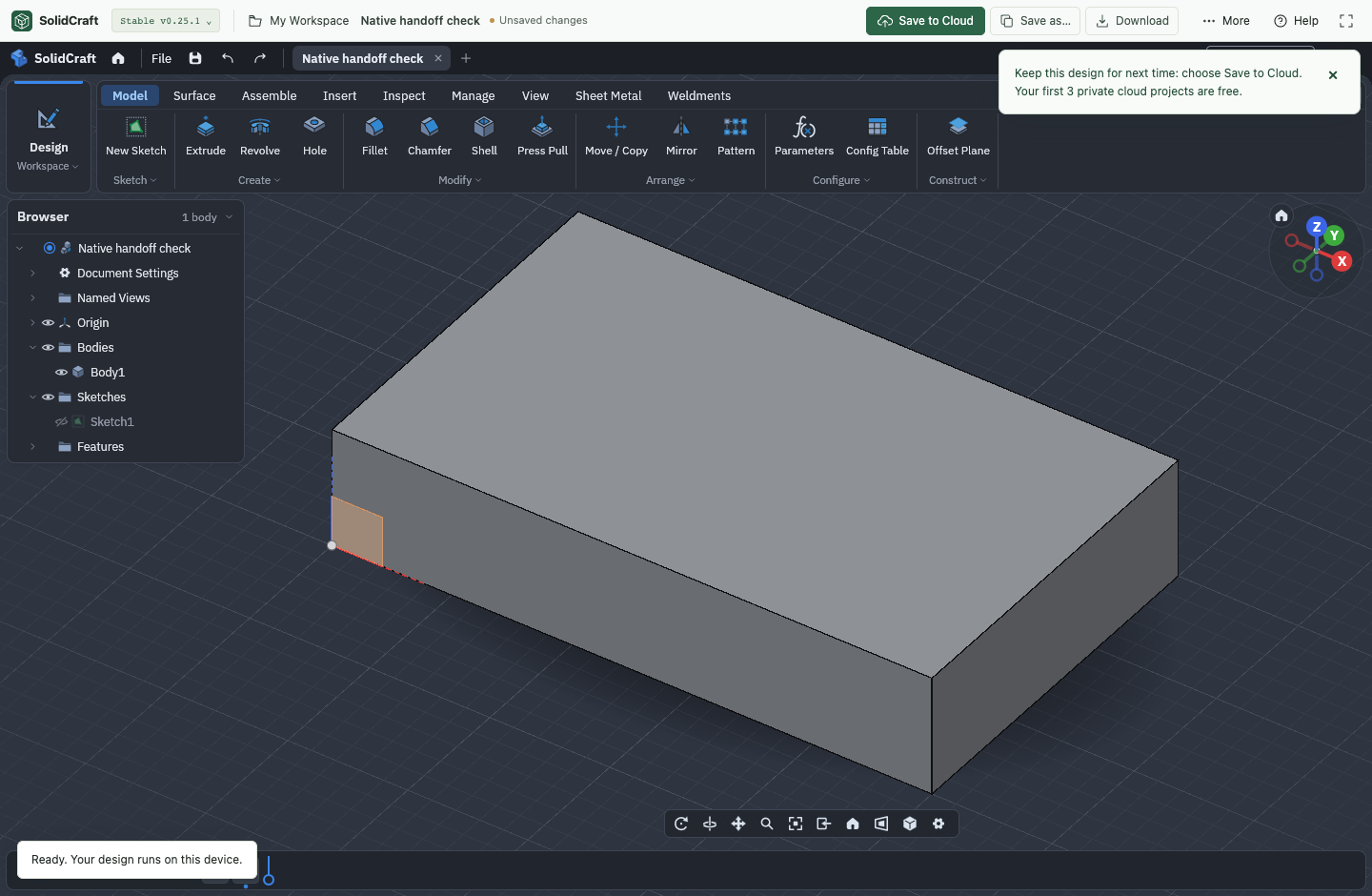
Use cloud saving when you want an account-based handoff
Sign in, open the design and choose Save to Cloud. Wait for the successful save before leaving the machine. On the second device, sign in to the same account, open My Workspace and choose that project. Check the last saved state before editing.
The current Free service includes 3 private projects and 128 MiB of total cloud storage; the per-file limit is 16 MiB. These are hosting-service limits, separate from local modeling. The pricing page lists current Pro capacity and retention. A cloud project is private storage, not a public sharing link.
Save again after making changes. Two open devices are not live collaborators: a newer cloud revision can conflict with an older open copy. If that happens, preserve the local work as a native backup, reopen the current cloud version and decide which changes to carry forward. Repeatedly pressing Save does not merge them.
An offline session starts with an online rehearsal
A local modeling engine does not guarantee a fresh offline launch. The application must already have downloaded, the relevant files must remain cached, and a native design must be available. A first visit without a connection cannot fetch the application. A browser clearing its cache changes the outcome.
Before travel, open the exact workspace online, load your design, save it locally and download a native backup. Then disconnect and try reopening that workspace and file. Repeat on the device and browser you will actually take. Cloud opening and uploading need a connection; do not count on them while offline. Onshape's documented workflow calls for reliable internet.
When the design seems to have disappeared
First check the context: same browser, same profile, same site and same workspace? A missing local design on a second machine is often a storage-location issue. If you saved to the cloud, check the signed-in account and last saved time; local edits made afterward will not be in that snapshot.
If a rendering failure keeps the editor from loading, try the alternative launch option or the recovery tools linked from the Online page. Preserve any native files already downloaded. Avoid clearing site data as a first troubleshooting step when the browser may hold your only copy.
Scroll the table horizontally on a small screen.
| Symptom | Check first |
|---|---|
| Empty workspace on another computer | Transfer the native file or open the saved cloud project |
| Cloud project opens an older state | Confirm the last successful manual save on the first device |
| File opens but dimensions are no longer editable | Check whether you transferred an STL/STEP instead of the native original |
| Canvas fails at launch | Try the Online page's rendering option and browser requirements |
| Cloud save reports a conflict | Back up local edits and reopen the latest cloud project |
FAQ
Questions before you start
Do I need an account to use browser CAD?
It depends on the service. SolidCraft Online allows local modeling without signing in; its cloud workspace requires an account. Onshape requires an account for its document workflow. Check account requirements separately from whether a plan is free.
Does a cloud save happen automatically?
Not in the SolidCraft cloud workflow described here. Choose Save to Cloud after changes and wait for success. A local browser save and a manual cloud snapshot have different destinations.
Can I switch between a laptop and a tablet?
A native transfer or saved cloud project can move the design. That does not establish that the tablet's browser and input controls suit your editing task. Test selecting, dimensioning, saving and reopening a small part first.
Which file should I keep if I want to edit the part later?
Keep the native .solidcraft design and verify that it reopens with its feature timeline. Export STL for a slicer or STEP for geometry exchange as needed, alongside the original.
Sources & editorial notes
Product documentation and service limits checked on October 30, 2026. Section references link to the sources below.
- SolidCraft Online: launching and saving
- Onshape Help: hardware and browser requirements
- SolidCraft v0.25.1: file workflow
- MDN: browser storage quotas and eviction
- SolidCraft: current cloud plans and limits
- SolidCraft: privacy and data handling
New check: v0.25.1 / native format 41, desktop Chrome with WebGL2 software rendering. A downloaded 50 × 30 × 10 mm model reopened in a second isolated profile, then rebuilt to 55 mm width (16,500 mm³). Both profiles ran on one computer. Cloud behavior and offline conditions use the site implementation and earlier repository tests with local service fixtures; no live cloud, Onshape or tablet trial was performed.
Written by the maintainers of SolidCraft Guide. We operate the editor and cloud service on solidcraft.online independently of the upstream SolidCraft project. Onshape is a separate product; this comparison is not endorsed by its maker.
Suggest a correction